
Let's do it together!
Step 1: Log in
Log into SlashExperts and access your dashboard to start configuring notifications.
Step 2: Access settings
Navigate to your advanced program settings from the SlashExperts Dashboard.
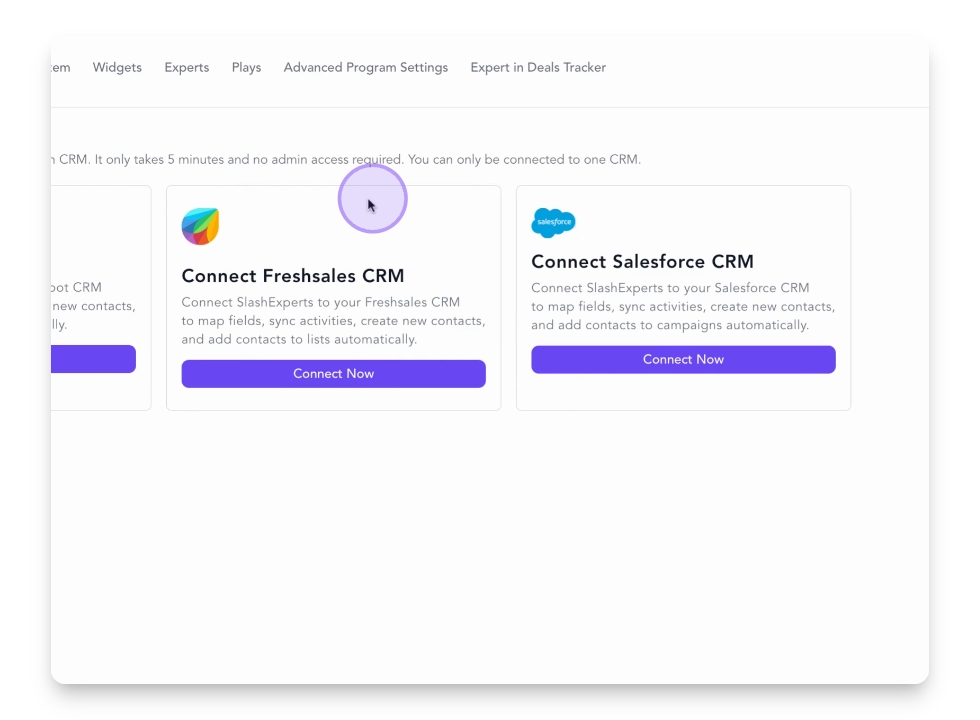
Step 3: Open notifications tab
Open the Meeting Notifications tab to choose your notification type.
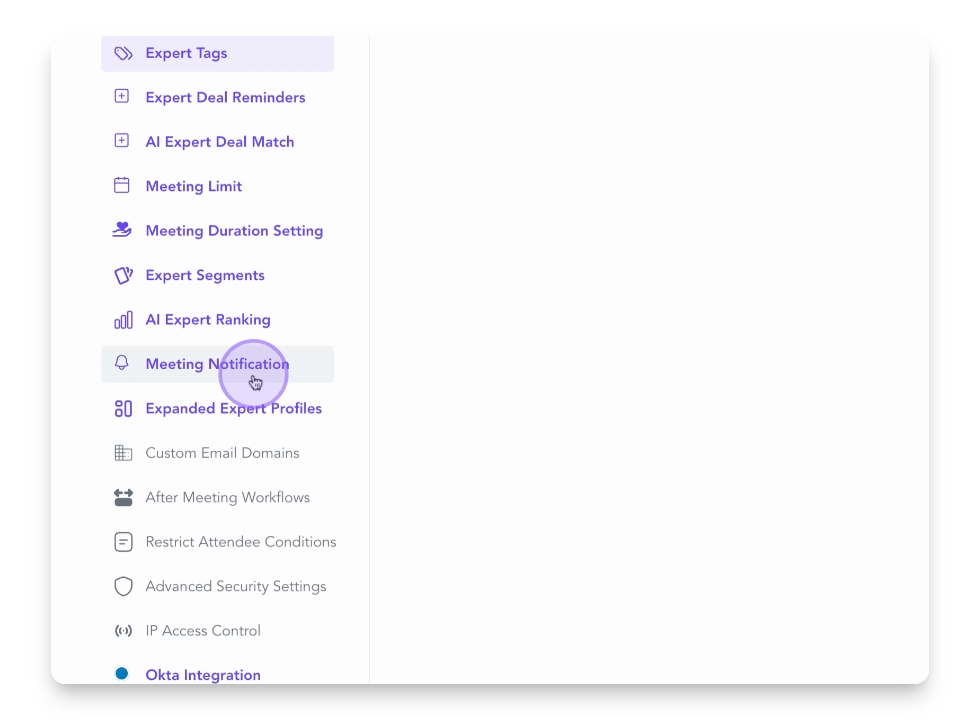
Step 4: Choose notification type
Select between CRM Account Owner Notifications or Admin Notifications.
Step 5: Configure CRM notifications
Enable CRM Account Owner Notifications to notify the account owner when a meeting is booked. Note: This requires your CRM to be integrated with SlashExperts
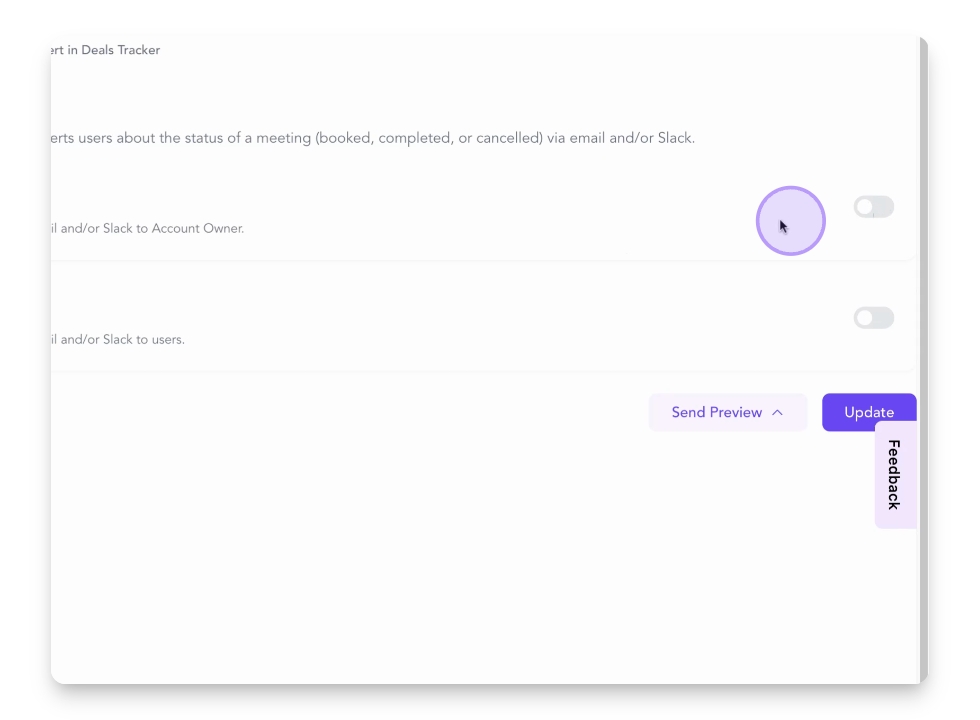
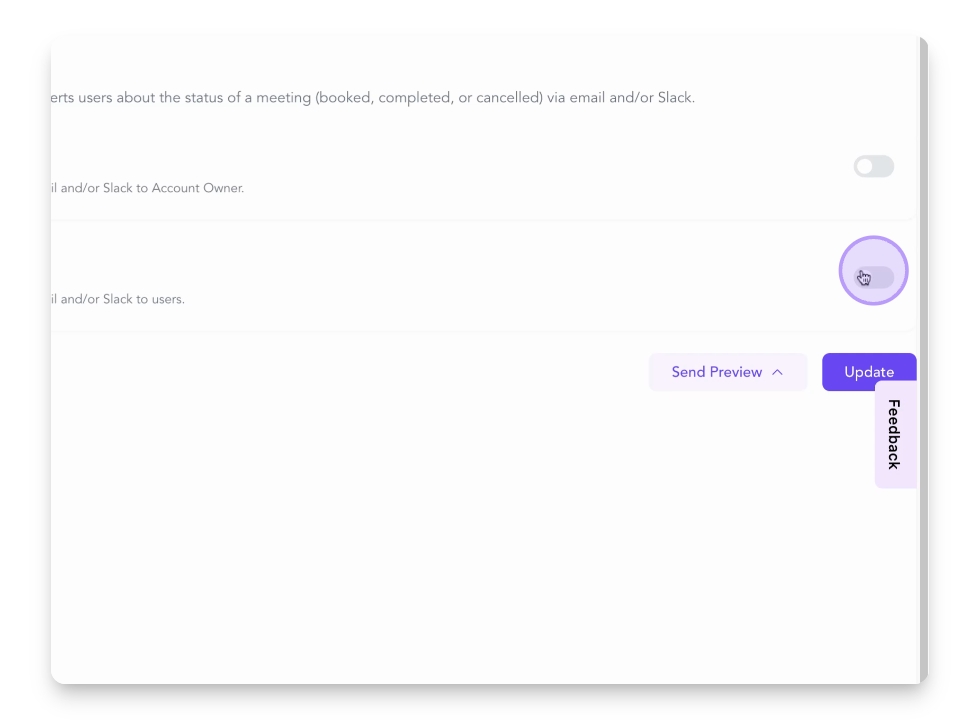
Step 6: Enable admin notifications
Toggle on the Notify Admins feature to send notifications to admins via email or Slack.
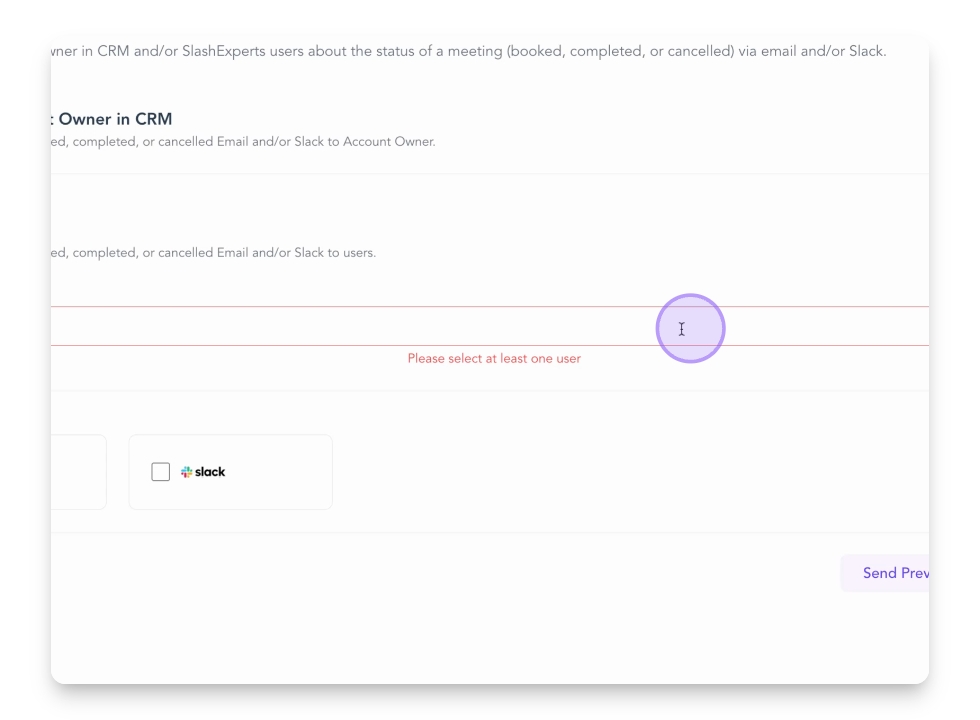
Step 7: Select users
Choose which users should receive notifications from the drop down menu.
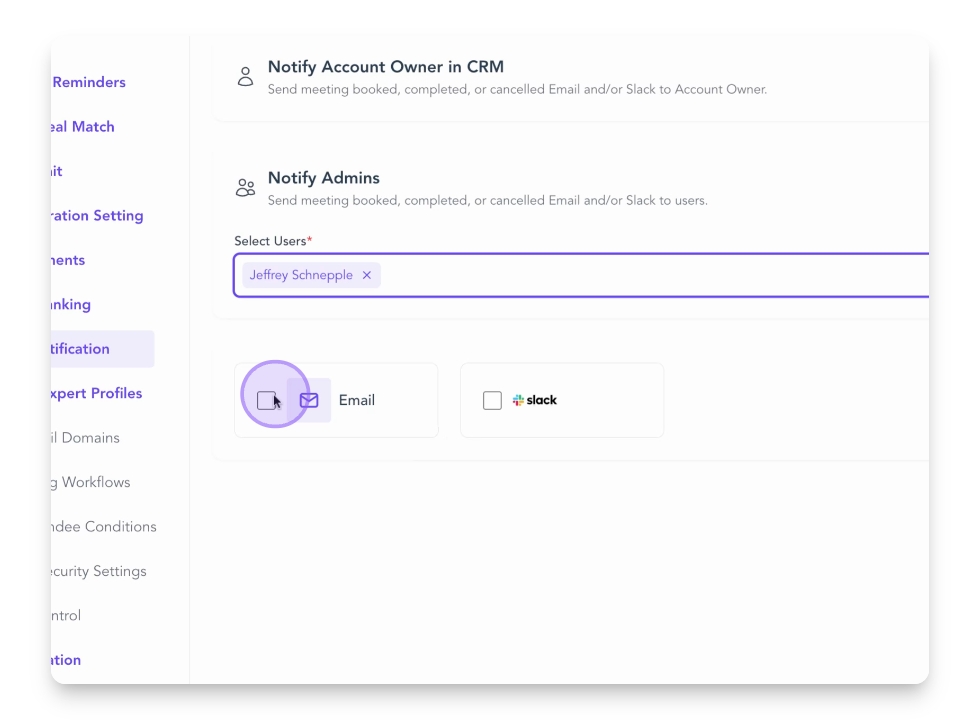
Step 8: Set email notifications
Check the Email Notifications box to receive notifications via email.
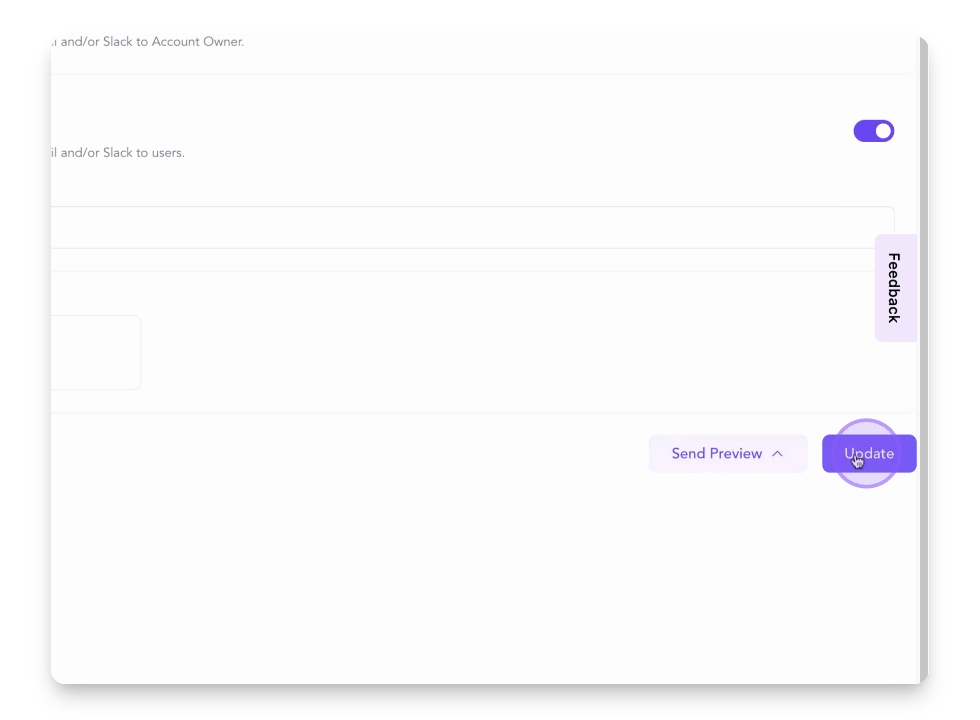
Step 9: Save preferences
Click Update to save your email notification preferences.
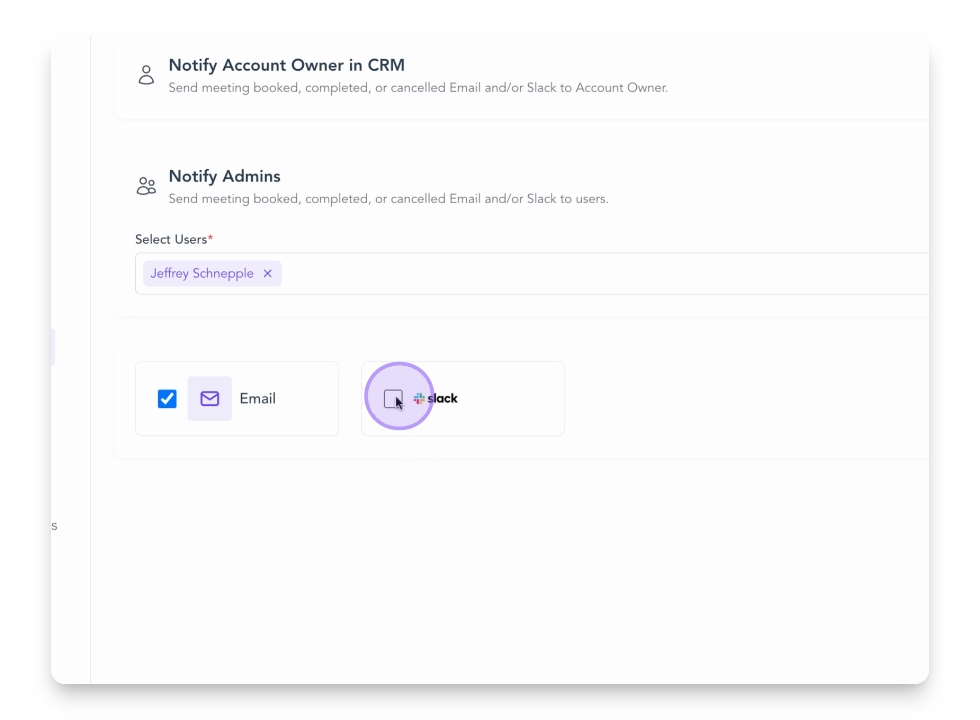
Step 10: Configure Slack notifications
Check the Slack Notifications box to receive notifications via Slack.
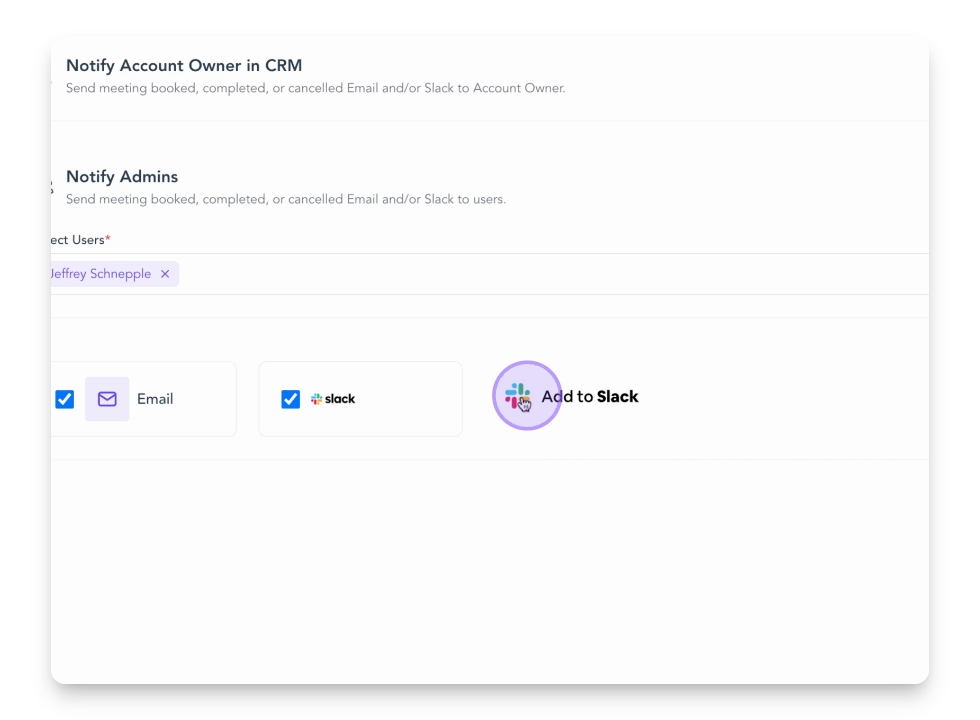
Step 11: Add SlashExperts app to Slack
Click to add the SlashExperts app to your Slack to grant permissions for meeting updates via direct message.
Step 12: Finalize settings
Return to the Meeting Notification section to confirm Slack is connected and checked.
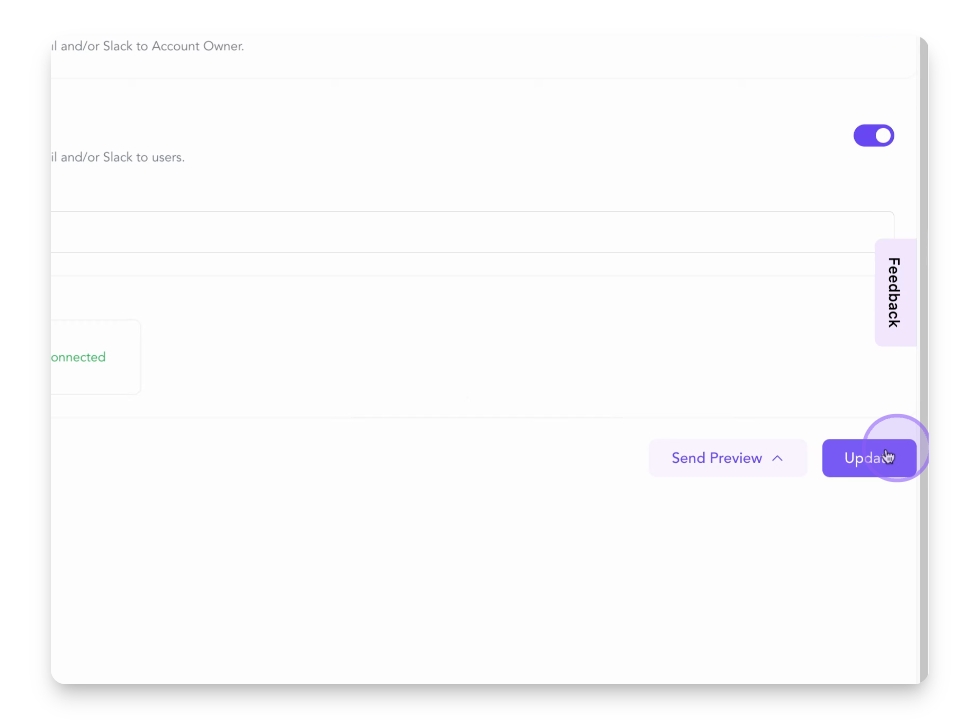
Step 13: Update settings
Click Update to apply all your notification settings.
Step 14: Completion
Your selected admins will now receive meeting notifications through your chosen channels.