

Example Website with Modal Implementation: View Metric Website
→ Click the Talk to Our Customers button on the homepage.
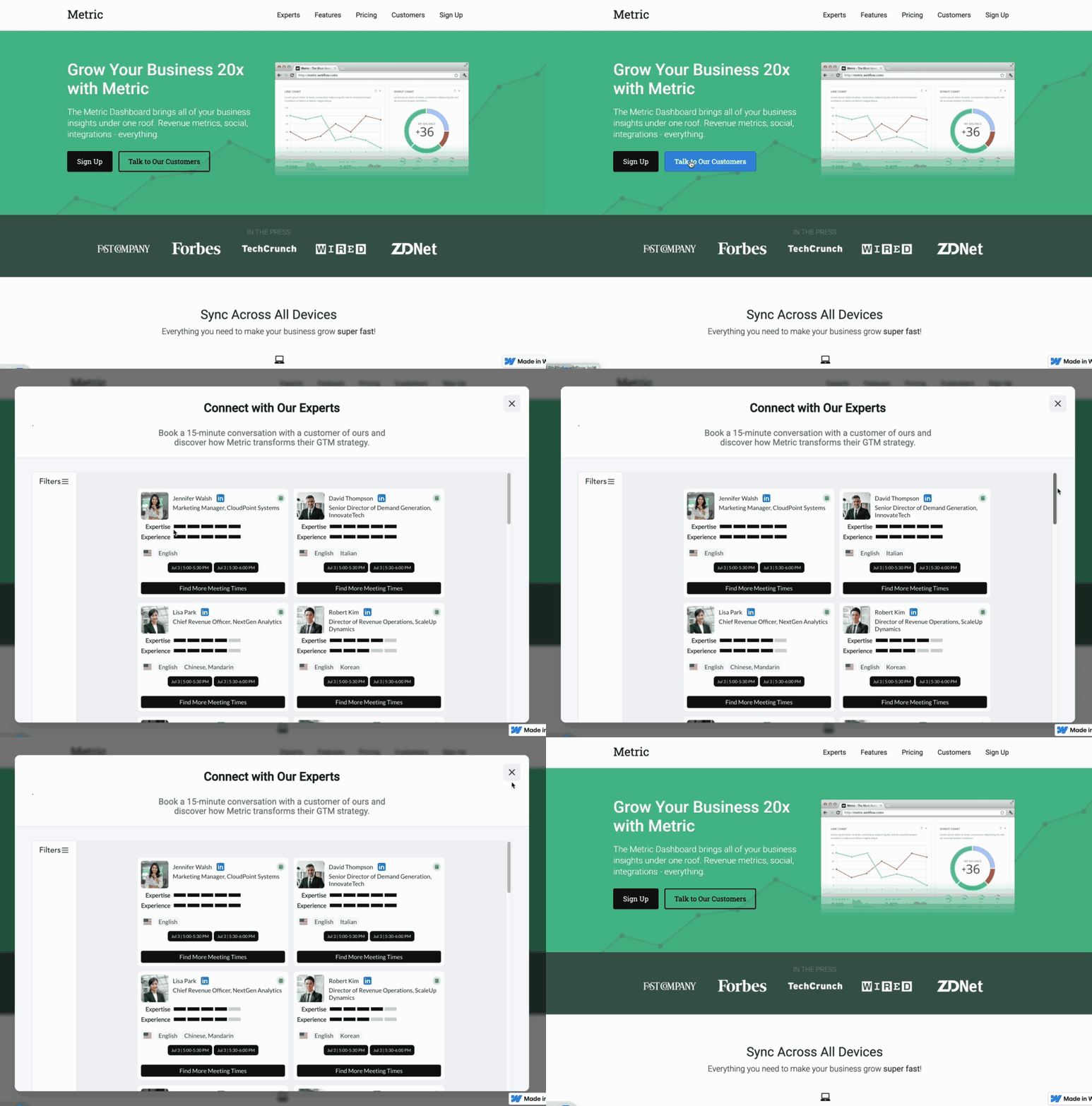
Benefits of Modal Implementation:
Contextual engagement without leaving the current page
Higher conversion by reducing friction
Flexible placement of CTAs throughout your site
Seamless user experience within your existing flow
SlashExperts Modal Implementation Guide for Webflow
Here's a complete implementation that works perfectly with Webflow:
Step 1: Add the SlashExperts Modal HTML Structure and Javascript
Add this custom code to your Webflow site's Custom Code section (Project Settings > Custom Code > Footer Code):
<!-- SlashExperts Modal Structure -->
<div id="slashexperts-modal" class="se-modal" style="display: none;">
  <div class="se-modal-overlay"></div>
  <div class="se-modal-container">
    <button class="se-modal-close" aria-label="Close modal">
      <svg width="24" height="24" viewBox="0 0 24 24" fill="none" xmlns="http://www.w3.org/2000/svg">
        <path d="M18 6L6 18" stroke="currentColor" stroke-width="2" stroke-linecap="round"/>
        <path d="M6 6L18 18" stroke="currentColor" stroke-width="2" stroke-linecap="round"/>
      </svg>
    </button>
    <div class="se-modal-content">
      <div class="se-modal-header">
        <h2>Connect with Our Experts</h2>
        <p>Book a 15-minute conversation with a customer of ours and discover how Metric transforms their GTM strategy.</p>
      </div>
      <div class="se-modal-body">
        <!-- Your SlashExperts iframe embed code -->
        <div id="slashexperts-embed">
          <iframe
            src="https://manage.slashexperts.com/experts_booking_system?company_id=YOUR_COMPANY_ID&program=YOUR_PROGRAM_ID"
            width="100%"
            height="600px"
            frameborder="0">
          </iframe>
        </div>
      </div>
    </div>
  </div>
</div>
<!-- SlashExperts Modal Structure -->
<div id="slashexperts-modal" class="se-modal" style="display: none;">
  <div class="se-modal-overlay"></div>
  <div class="se-modal-container">
    <button class="se-modal-close" aria-label="Close modal">
      <svg width="24" height="24" viewBox="0 0 24 24" fill="none" xmlns="http://www.w3.org/2000/svg">
        <path d="M18 6L6 18" stroke="currentColor" stroke-width="2" stroke-linecap="round"/>
        <path d="M6 6L18 18" stroke="currentColor" stroke-width="2" stroke-linecap="round"/>
      </svg>
    </button>
    <div class="se-modal-content">
      <div class="se-modal-header">
        <h2>Connect with Our Experts</h2>.
        <p>Book a 15-minute conversation with a customer of ours and discover how Metric transforms their GTM strategy.</p>
      </div>
      <div class="se-modal-body">
        <!-- Your SlashExperts iframe embed code -->
        <div id="slashexperts-embed">
          <iframe
            src="https://manage.slashexperts.com/experts_booking_system?company_id=682e2f995a8a6854846fee0c&program=3994b15a-3992-445f-83e2-1351609dd1e7"
            width="100%"
            height="600px"
            frameborder="0">
          </iframe>
        </div>
      </div>
    </div>
  </div>
</div>
<!-- End SlashExperts Modal Structure -->
<!-- SlashExperts Modal JS -->
<script>
document.addEventListener('DOMContentLoaded', function() {
  // SlashExperts Modal Controller
  const modal = document.getElementById('slashexperts-modal');
  const modalOverlay = modal.querySelector('.se-modal-overlay');
  const modalClose = modal.querySelector('.se-modal-close');
  const modalBody = modal.querySelector('.se-modal-body');

  // Function to open modal
  function openSlashExpertsModal() {
    modal.style.display = 'flex';
    document.body.style.overflow = 'hidden'; // Prevent background scrolling

    // Add loading state while embed loads
    if (!modalBody.querySelector('#slashexperts-embed').hasChildNodes()) {
      modalBody.classList.add('se-modal-loading');

      // Remove loading state after a short delay
      setTimeout(() => {
        modalBody.classList.remove('se-modal-loading');
      }, 500);
    }
  }

  // Function to close modal
  function closeSlashExpertsModal() {
    modal.style.display = 'none';
    document.body.style.overflow = ''; // Restore scrolling
  }

  // Close modal on overlay click
  modalOverlay.addEventListener('click', closeSlashExpertsModal);

  // Close modal on close button click
  modalClose.addEventListener('click', closeSlashExpertsModal);

  // Close modal on ESC key
  document.addEventListener('keydown', function(e) {
    if (e.key === 'Escape' && modal.style.display === 'flex') {
      closeSlashExpertsModal();
    }
  });

  // Attach click handlers to all SlashExperts CTAs
  document.querySelectorAll('[data-slashexperts-trigger]').forEach(function(trigger) {
    trigger.addEventListener('click', function(e) {
      e.preventDefault();
      openSlashExpertsModal();
    });
  });
});
</script>
<!-- End SlashExperts Modal JS -->
⚠️ Important - While adding this code, you need to customize:
Modal Header Title: Replace "Connect with Our Experts" with your preferred title
Modal Header Subtitle: Replace "Book a 15-minute conversation with a customer of ours and discover how Metric transforms their GTM strategy." with your preferred description
iframe src URL: Replace
YOUR_COMPANY_IDandYOUR_PROGRAM_IDwith your actual IDs from the SlashExperts dashboard in the iframe src URL.
<iframe src="https://manage.slashexperts.com/experts_booking_system?company_id=YOUR_COMPANY_ID&program=YOUR_PROGRAM_ID" width="100%" height="600px" frameborder="0">
→ Then hit the SAVE button.
Step 2: Add the CSS Styles
Add this to your Webflow site's Custom Code section (Project Settings > Custom Code > Head Code):
<style>
/* SlashExperts Modal Styles */
.se-modal {
  position: fixed;
  top: 0;
  left: 0;
  width: 100%;
  height: 100%;
  z-index: 9999;
  display: flex;
  align-items: center;
  justify-content: center;
}

.se-modal-overlay {
  position: absolute;
  top: 0;
  left: 0;
  width: 100%;
  height: 100%;
  background-color: rgba(0, 0, 0, 0.5);
  backdrop-filter: blur(4px);
}

.se-modal-container {
  position: relative;
  width: 90%;
  max-width: 1200px;
  max-height: 90vh;
  background-color: #ffffff;
  border-radius: 12px;
  box-shadow: 0 20px 25px -5px rgba(0, 0, 0, 0.1), 0 10px 10px -5px rgba(0, 0, 0, 0.04);
  overflow: hidden;
  animation: modalSlideIn 0.3s ease-out;
}

@keyframes modalSlideIn {
  from {
    opacity: 0;
    transform: translateY(20px);
  }
  to {
    opacity: 1;
    transform: translateY(0);
  }
}

.se-modal-close {
  position: absolute;
  top: 20px;
  right: 20px;
  width: 40px;
  height: 40px;
  border: none;
  background-color: #f3f4f6;
  border-radius: 8px;
  cursor: pointer;
  display: flex;
  align-items: center;
  justify-content: center;
  transition: all 0.2s ease;
  z-index: 10;
}

.se-modal-close:hover {
  background-color: #e5e7eb;
  transform: scale(1.05);
}

.se-modal-content {
  height: 100%;
  display: flex;
  flex-direction: column;
}

.se-modal-header {
  padding: 32px 40px 24px;
  border-bottom: 1px solid #e5e7eb;
}

.se-modal-header h2 {
  font-size: 28px;
  font-weight: 700;
  margin: 0 0 8px 0;
  color: #111827;
}

.se-modal-header p {
  font-size: 20px;
  color: #6b7280;
  margin: 0;
  text-align: center;
  max-width:550px;
  margin:0 auto;
}

.se-modal-body {
  flex: 1;
  padding: 32px 40px;
  overflow-y: auto;
  background-color: #f9fafb;
}

/* Responsive Design */
@media (max-width: 768px) {
  .se-modal-container {
    width: 100%;
    height: 100%;
    max-height: 100%;
    border-radius: 0;
  }

  .se-modal-header {
    padding: 24px 20px 16px;
  }

  .se-modal-body {
    padding: 20px;
  }

  .se-modal-close {
    top: 12px;
    right: 12px;
  }
}

/* Loading State */
.se-modal-loading {
  display: flex;
  align-items: center;
  justify-content: center;
  height: 400px;
}

.se-modal-loading::after {
  content: "";
  width: 40px;
  height: 40px;
  border: 3px solid #e5e7eb;
  border-top-color: #3b82f6;
  border-radius: 50%;
  animation: spin 0.8s linear infinite;
}

@keyframes spin {
  to { transform: rotate(360deg); }
}
</style>
→ Then hit the SAVE button.
⚠️ Advanced Modal Customization: If you'd like to make any changes to the modal design or functionality, please reach out to your account manager who will assist with customizations.
Step 3: Create CTAs in Webflow
In your Webflow designer, add the data-slashexperts-trigger attribute to any button or link that should open the modal:
Select your button/link element
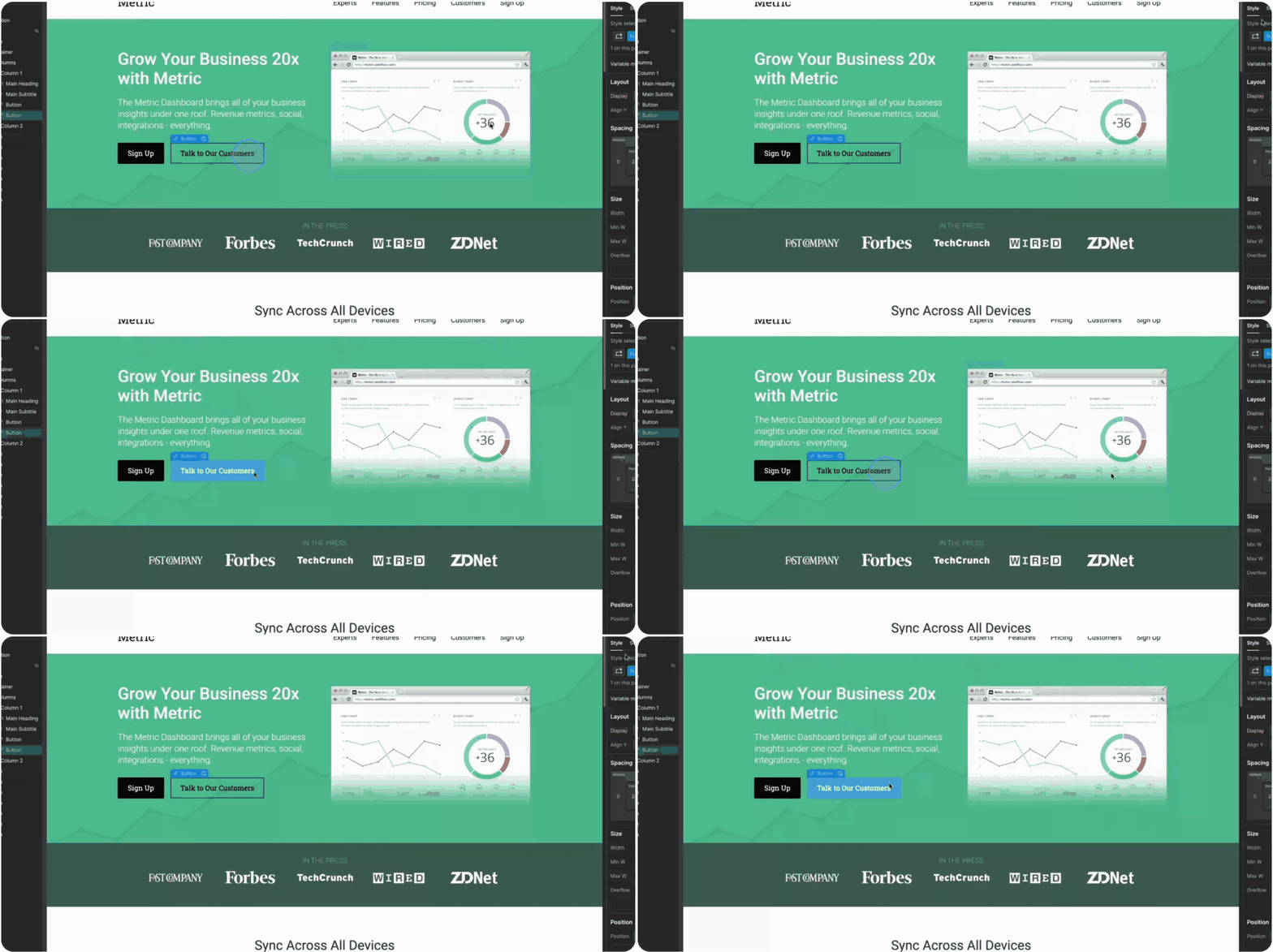
Go to Element Settings (gear icon)
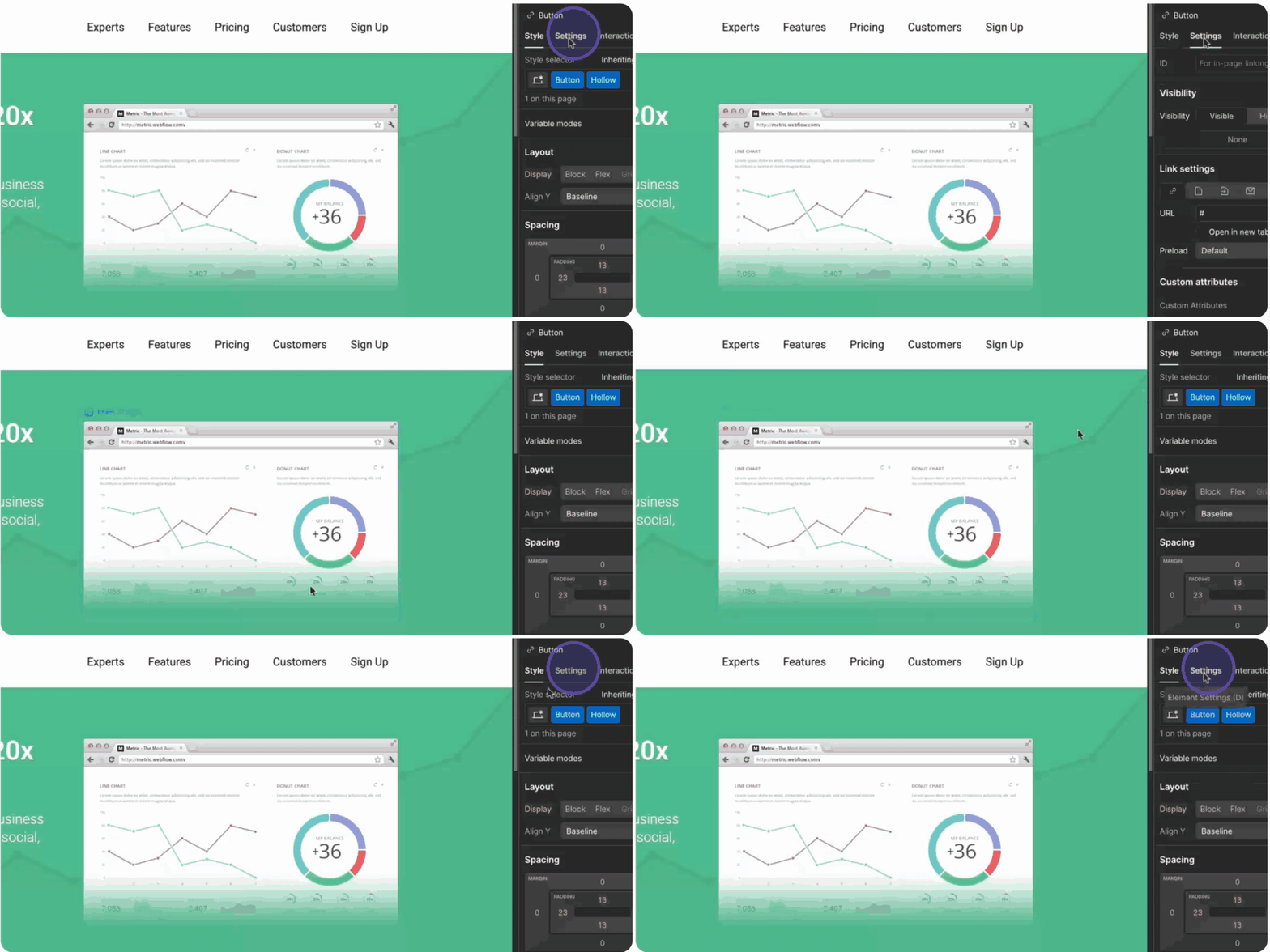
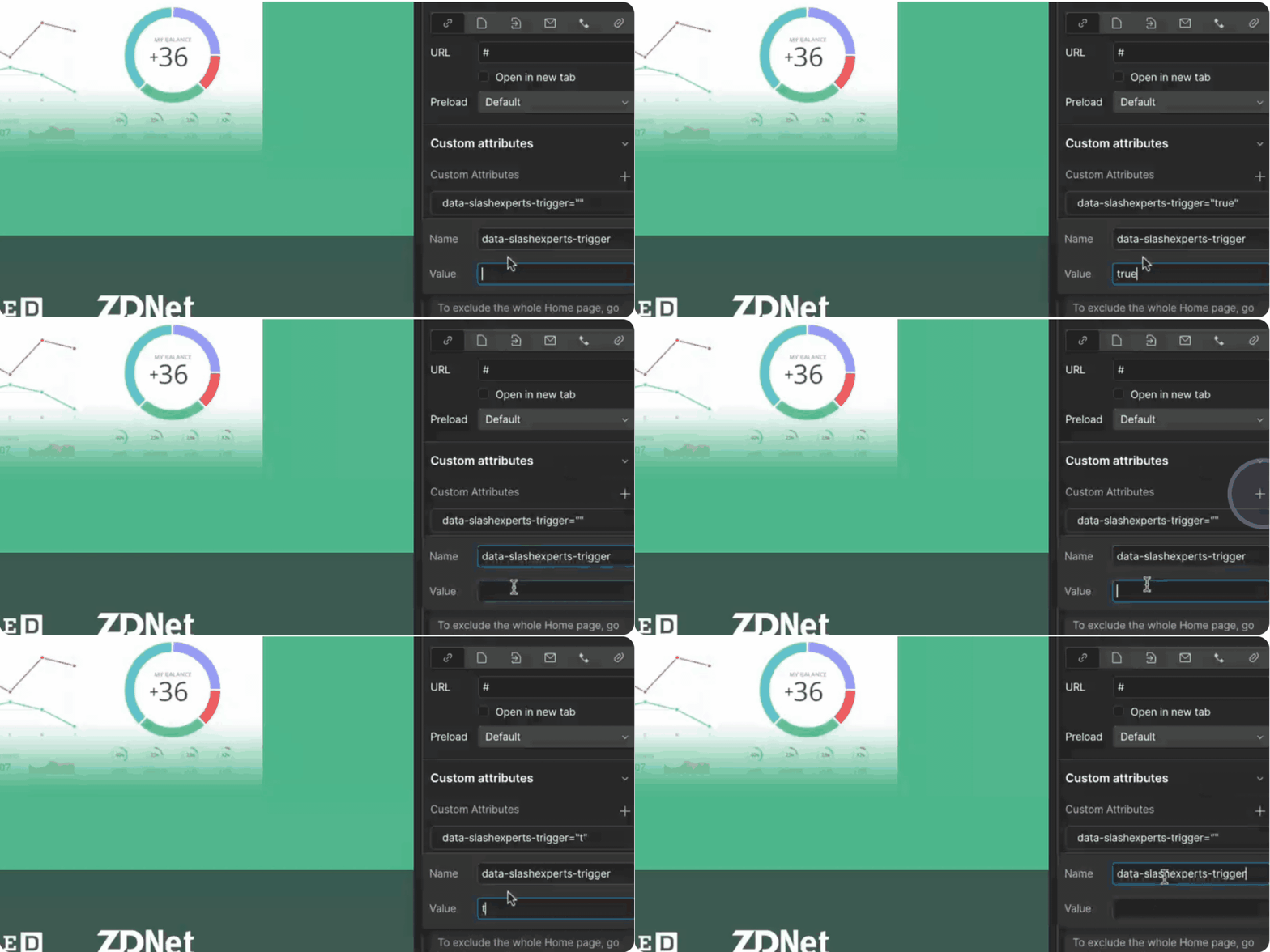
Under Custom Attributes, add:
Name:
data-slashexperts-triggerValue:
true
Best Practices for SlashExperts Modal CTAs:
Homepage Placement
Hero section: Primary CTA next to your main value proposition
Social proof section: "Want to hear more? Talk to them directly"
Feature sections: "See how others use this feature"
Product Pages
Feature descriptions: "Learn how customers leverage this"
Use case sections: "Connect with similar companies"
Pricing Page
Plan comparison: "Unsure which plan? Ask current users"
FAQ section: "Still have questions? Talk to our customers"
About/Customer Page
Success stories: "Want details? Book a conversation"
Case studies: "Speak directly with this customer"
Need Help?
Our team is here to help you implement the perfect solution for your website. Contact your account manager or support@slashexperts.com for assistance.
Remember: The key to success is making expert connections easily accessible throughout your buyer's journey. Test different placements and track engagement to optimize your implementation.