
To get started, first log into your SlashExperts account and navigate to the Expert Program Details tab in the top left menu.
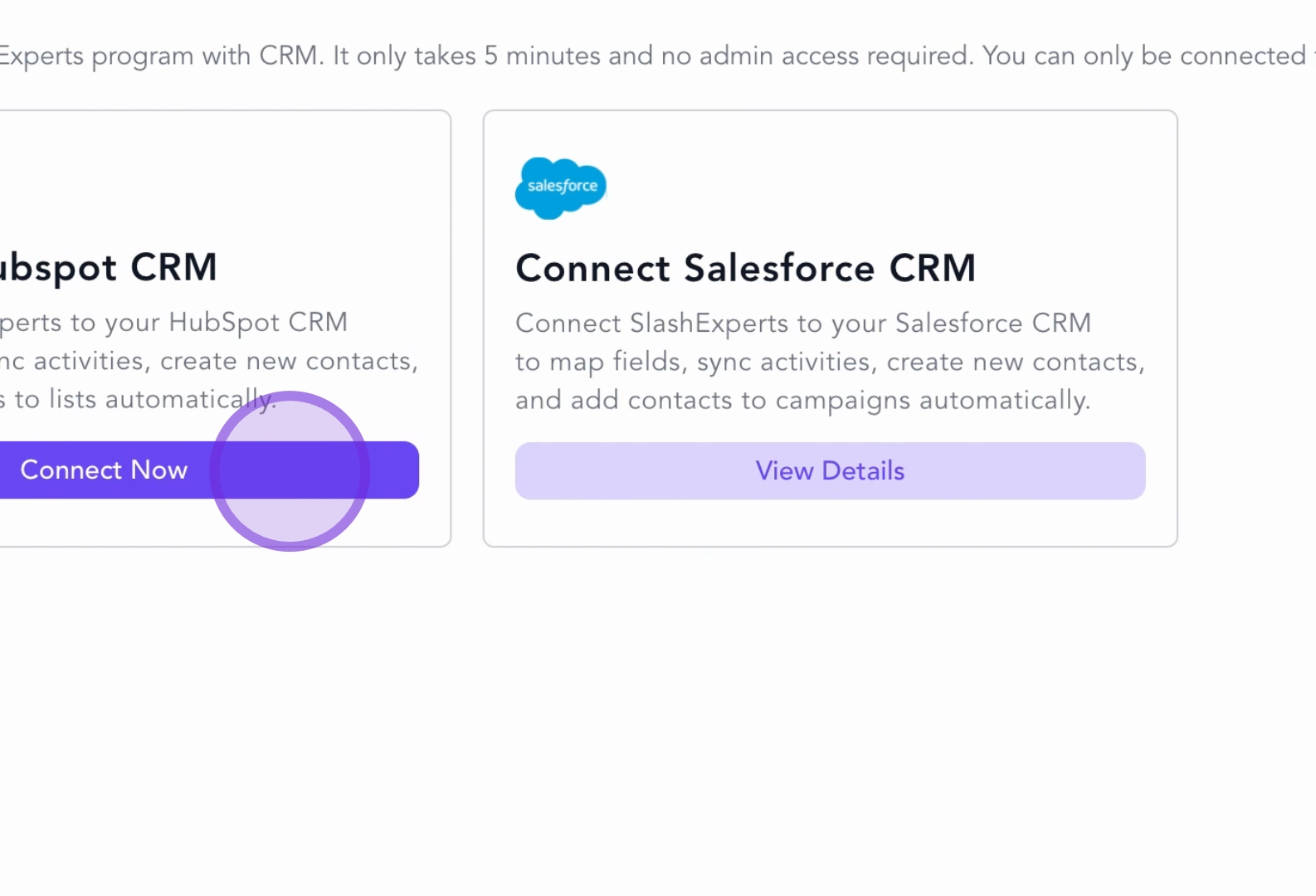
Click on the Connect now button located under the HubSpot card.
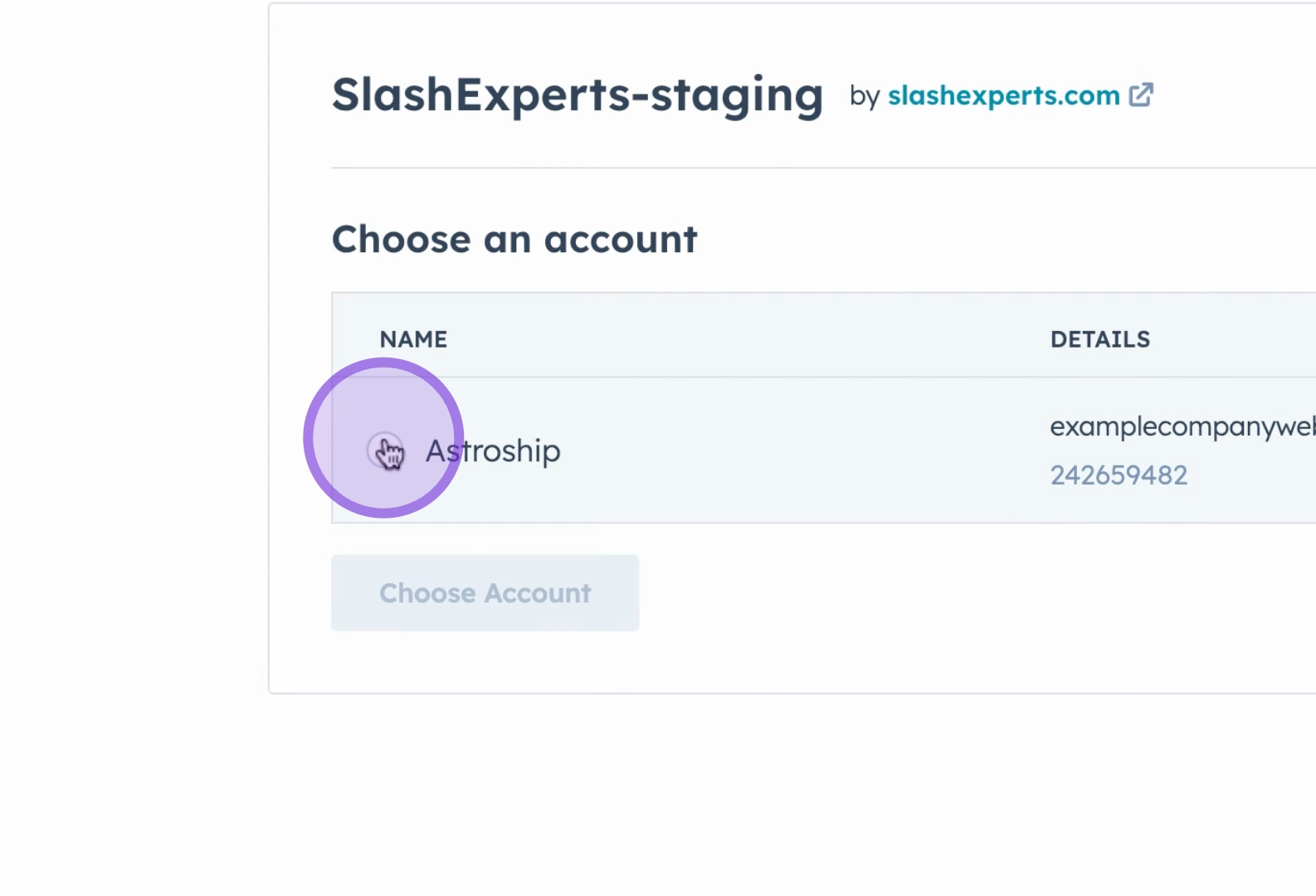
Once redirected to the HubSpot OAuth page, select the account that you wish to sync with Slash Experts.
Then, hit Choose Account.
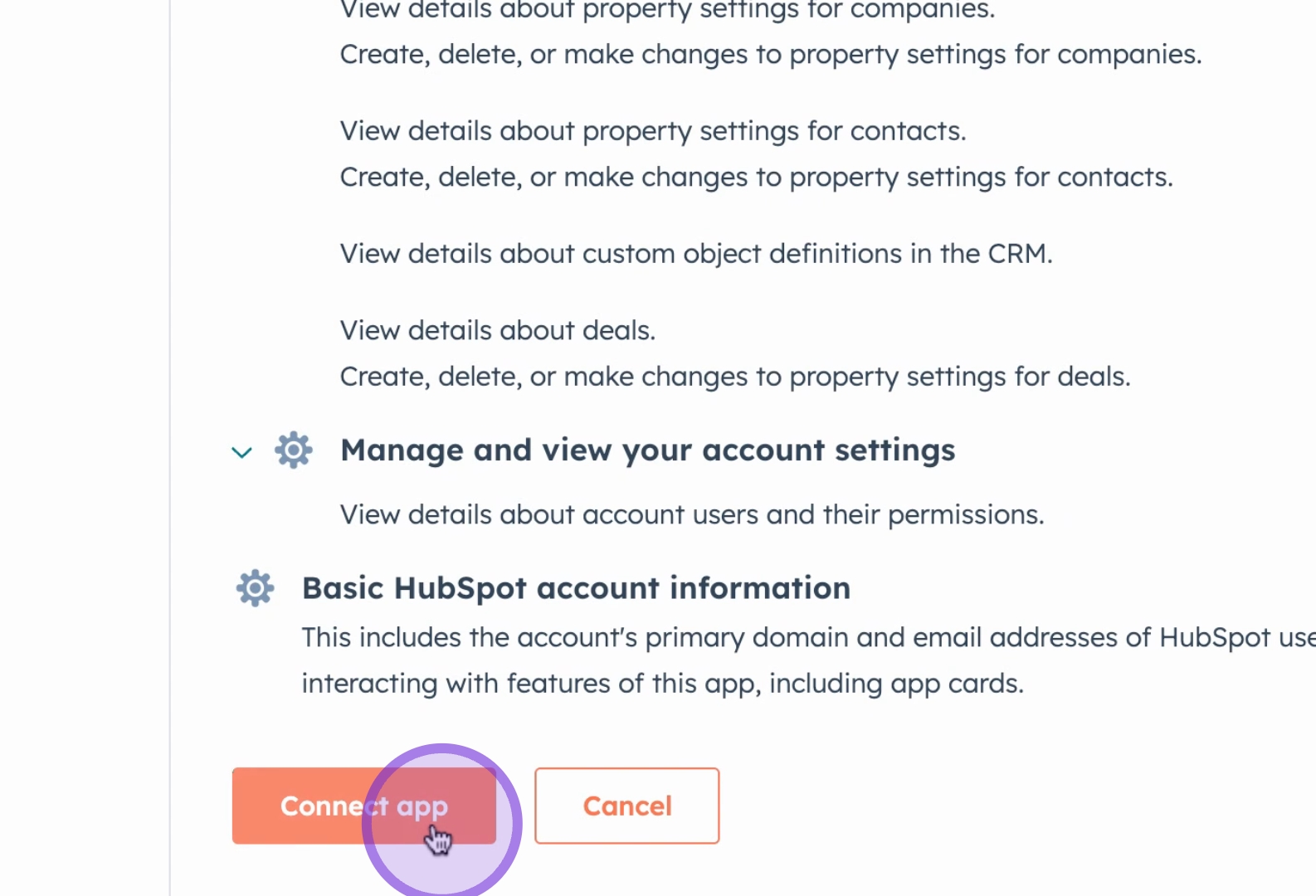
You will now see all of the required permissions necessary for the integration to function correctly.
Review the permissions and click on Connect App.
After establishing the connection, map the fields from SlashExperts to HubSpot.
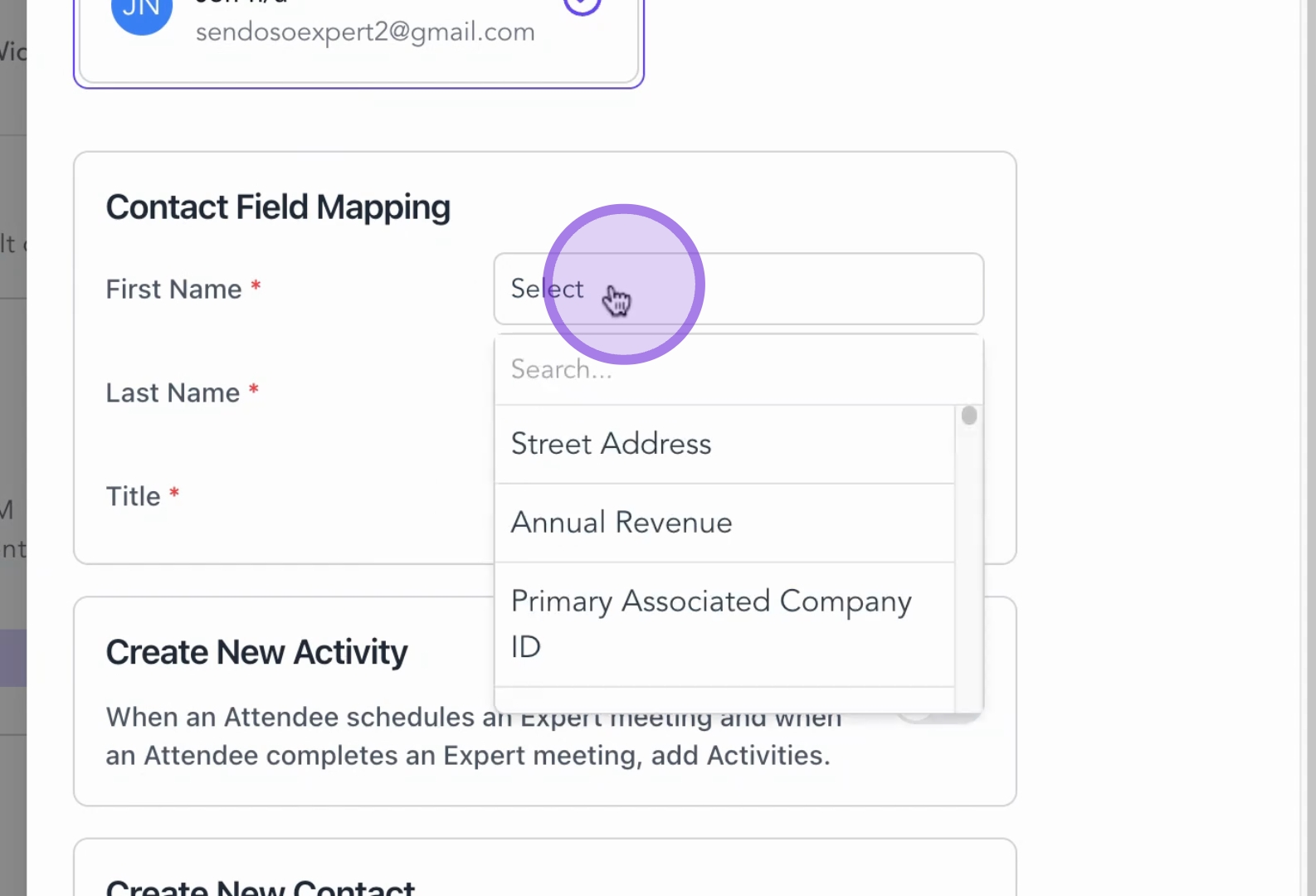
These fields are most commonly identified by their title to the left, which you can simply type in and select.
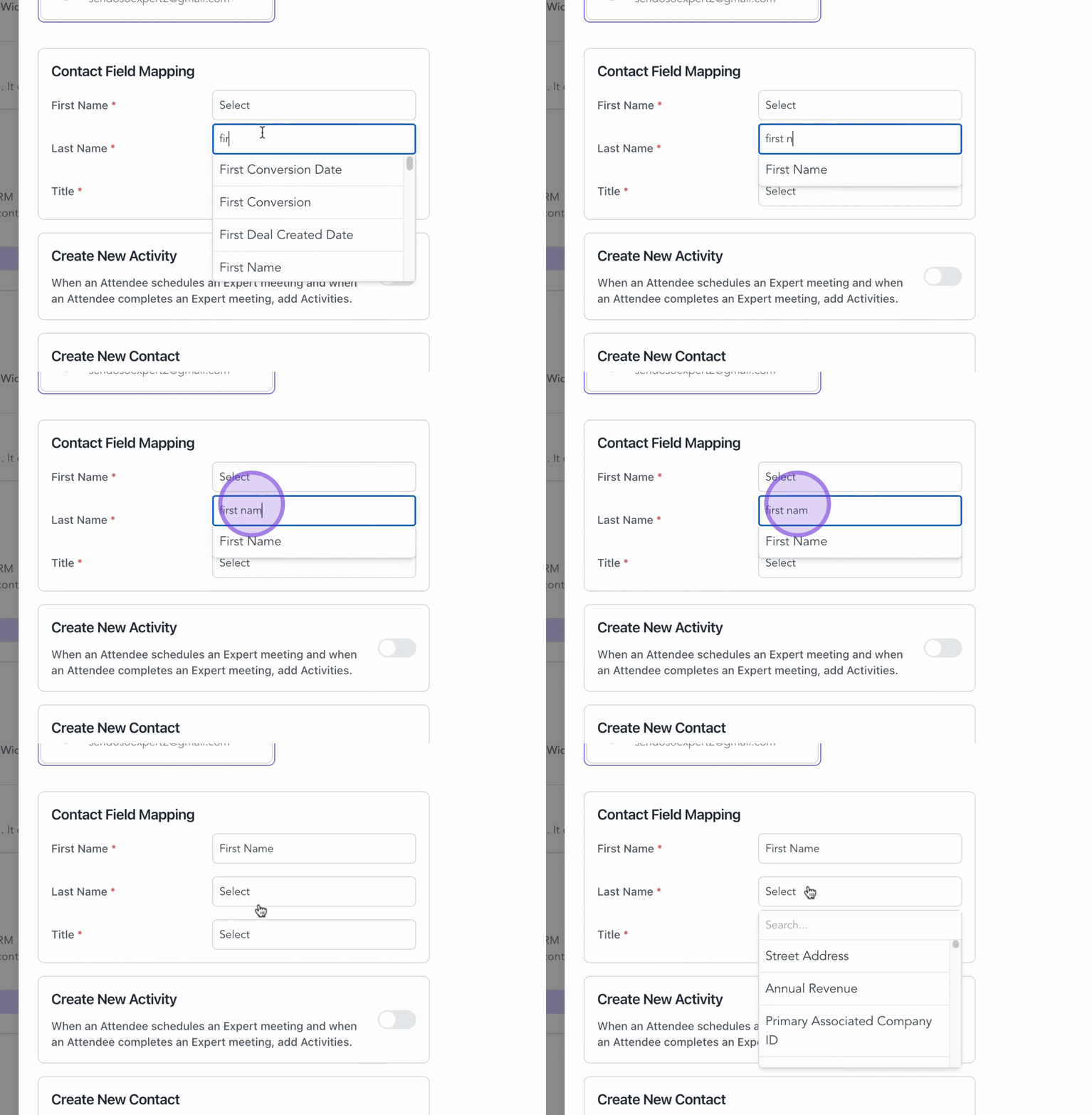
Additionally, you can toggle on options to:
Create new activities when Expert meetings are scheduled
Create new contacts that don't exist in HubSpot based on their email address
Add attendees to a list in HubSpot
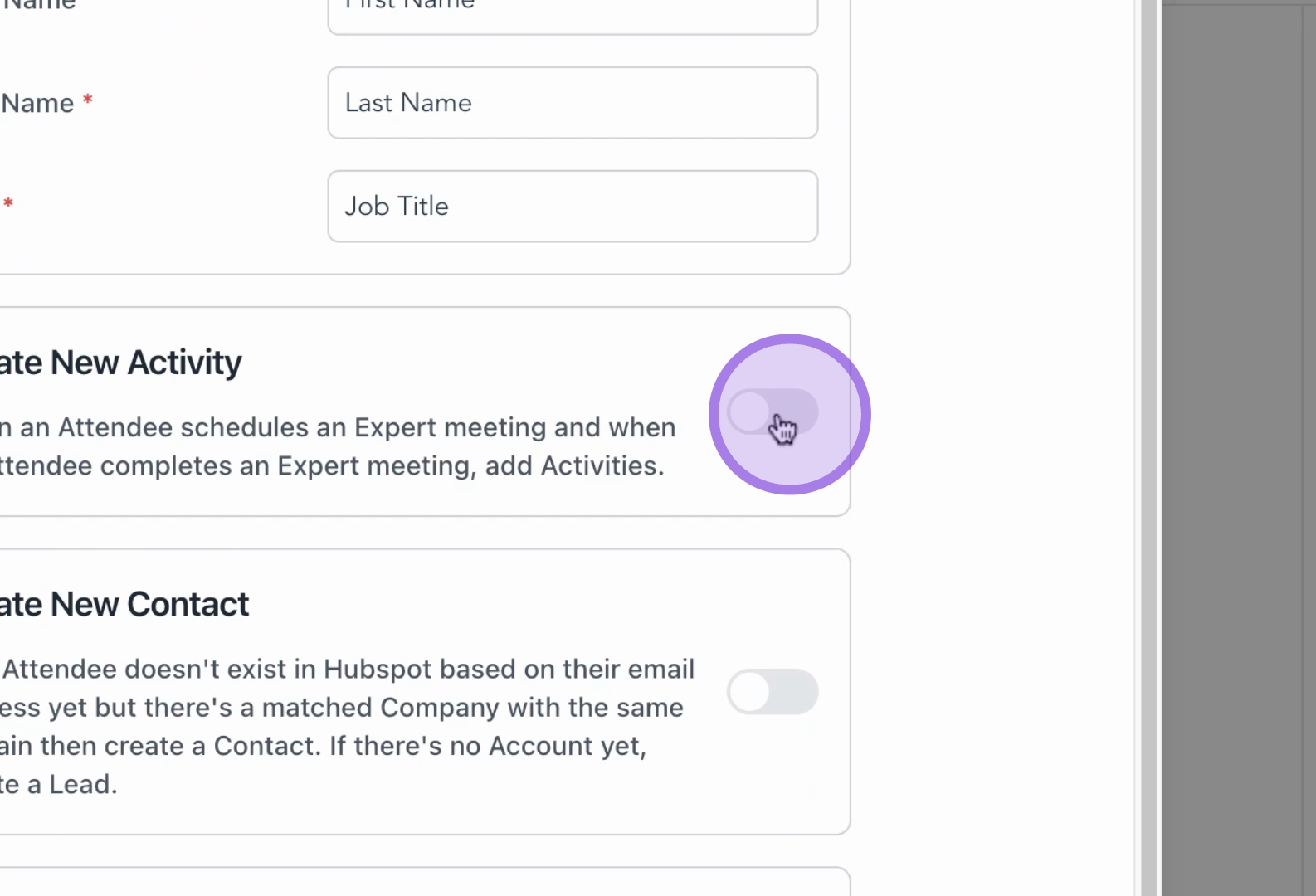
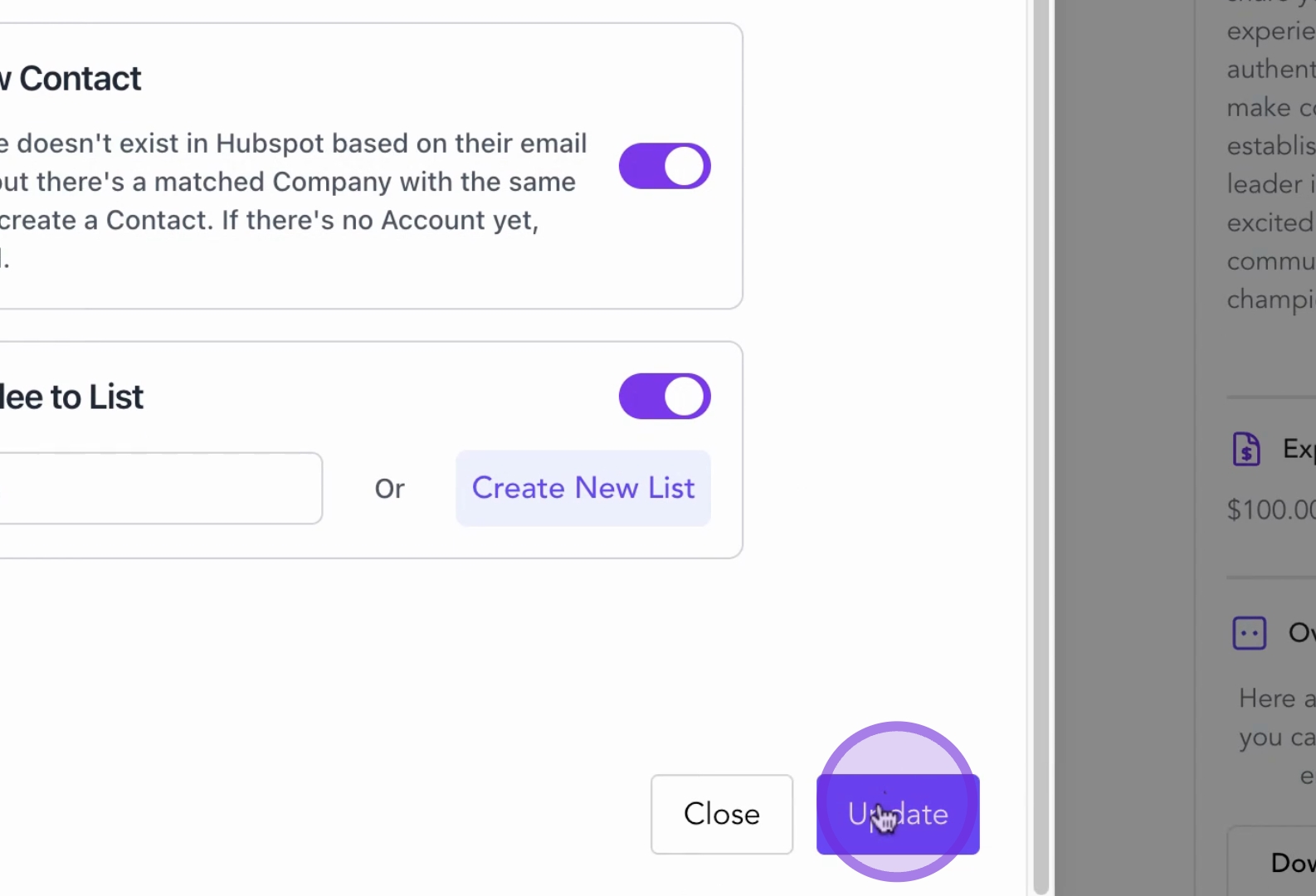
Once you have completed the mapping, click on the Update button.
You will have successfully synced HubSpot and SlashExperts, enabling comprehensive tracking of activities and individuals.