
To get started, first log into your SlashExperts account.
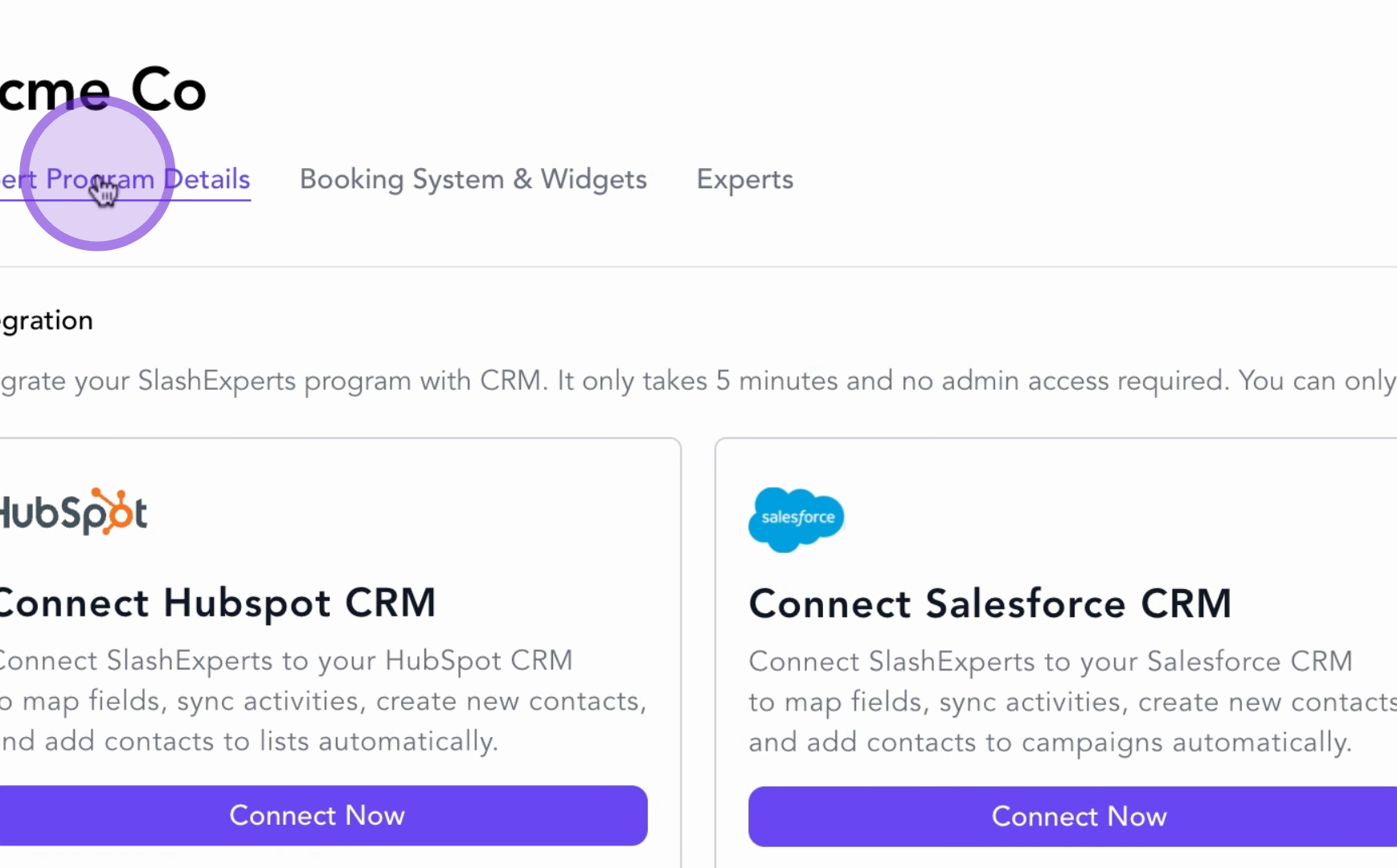
Then, navigate to the Expert Program Details tab in the top left menu.
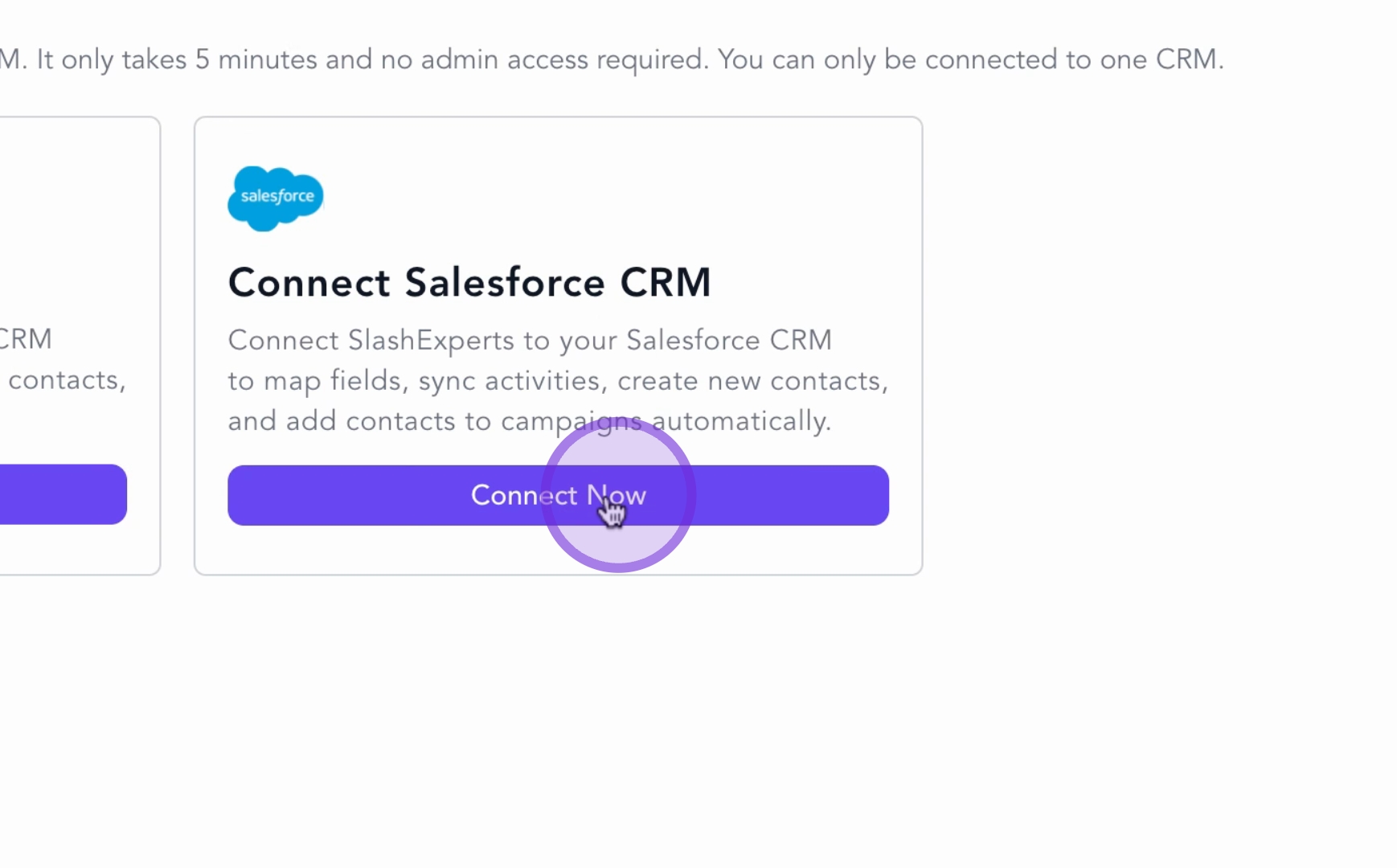
Next, find the Salesforce panel and click on Connect.
You will then sync Salesforce by logging into your Salesforce account.
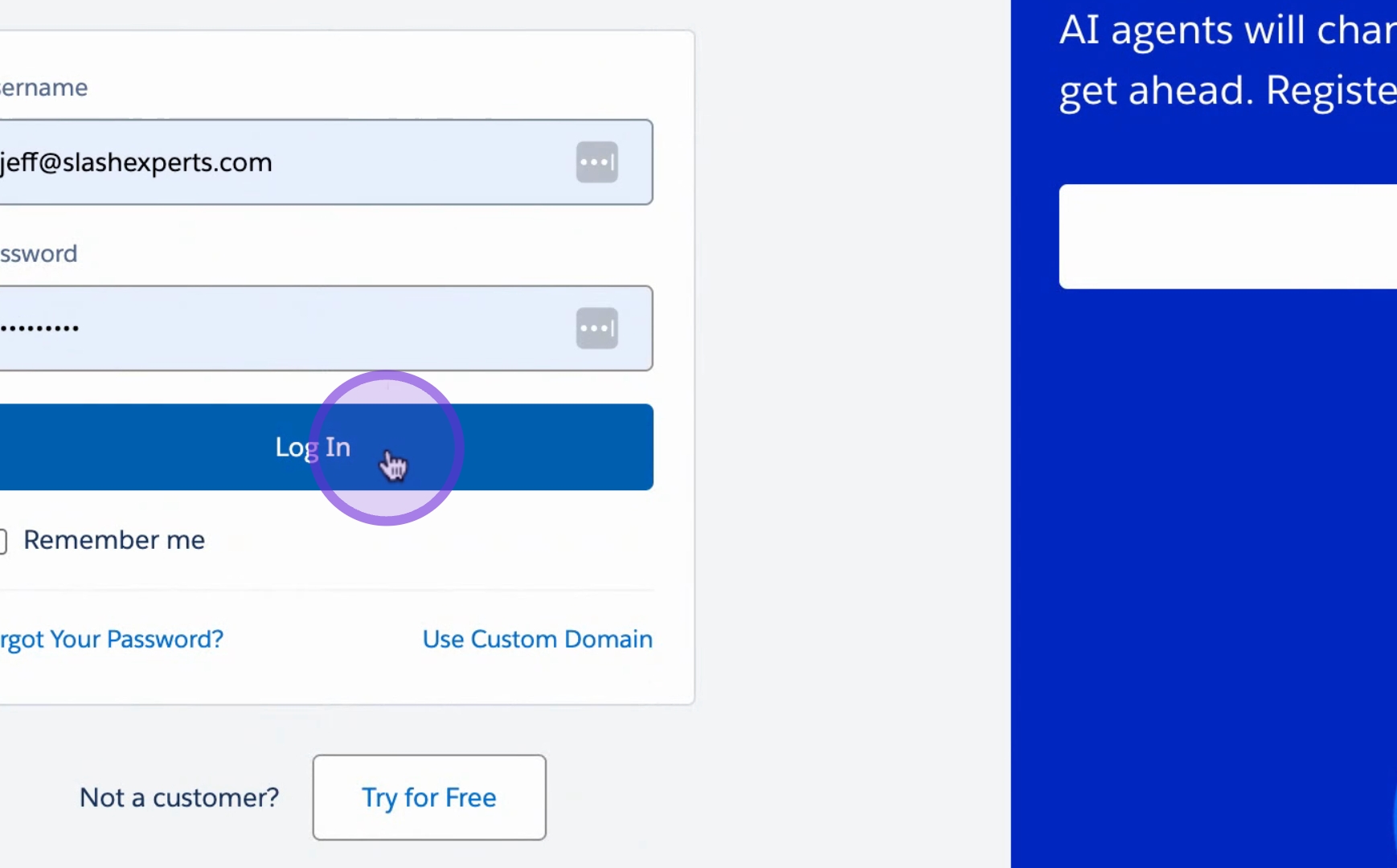
Enter your Salesforce login details and then press login.
SlashExperts needs a few Salesforce permissions to enable the syncing of data.
Click Allow to grant permissions.
You will return to the SlashExperts dashboard.
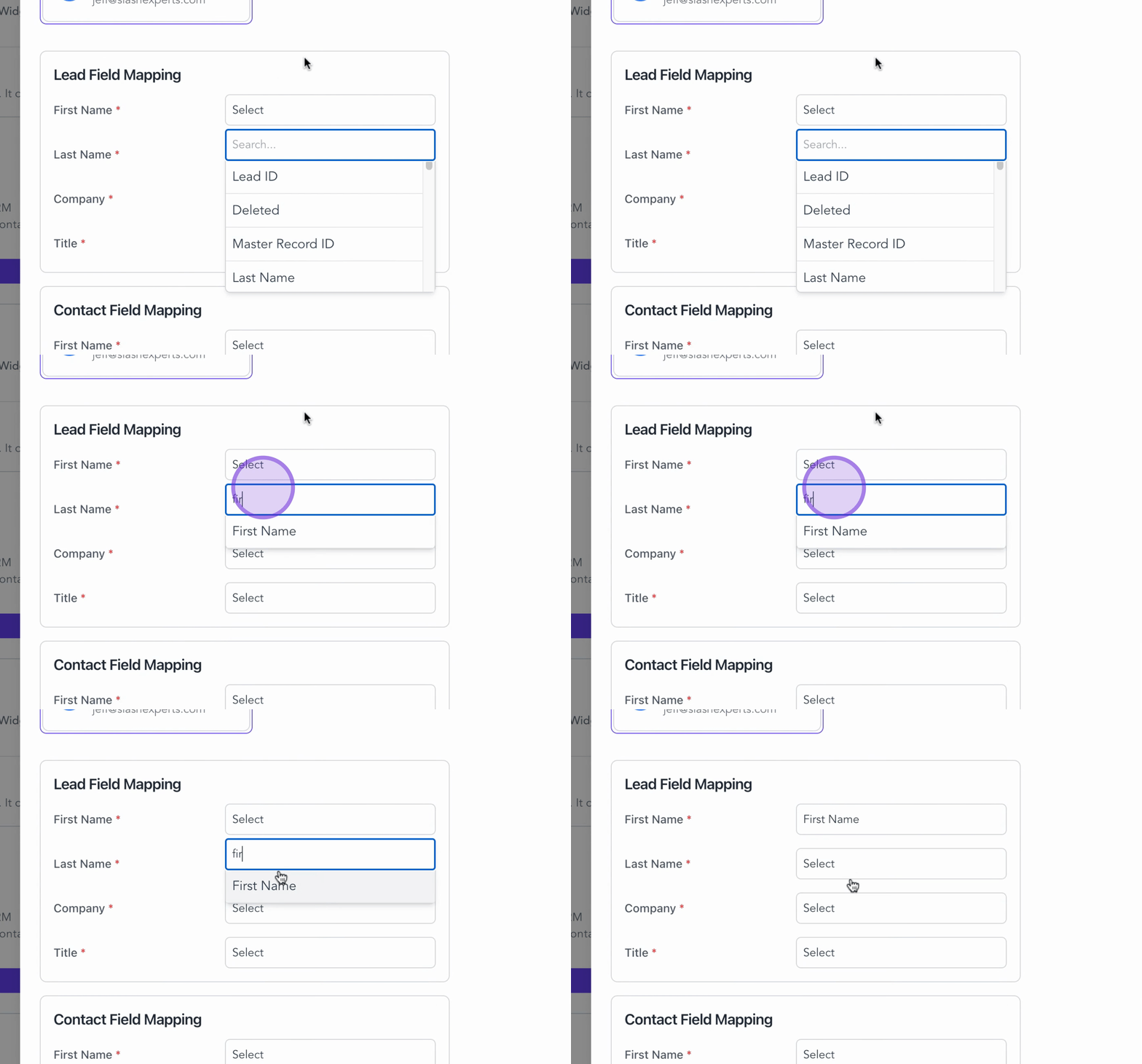
Now, map the fields to your Salesforce account.
These fields are most commonly identified by their title to the left, which you can simply type in and select.
Finally, click Update to finish the sync.
You are good to go!
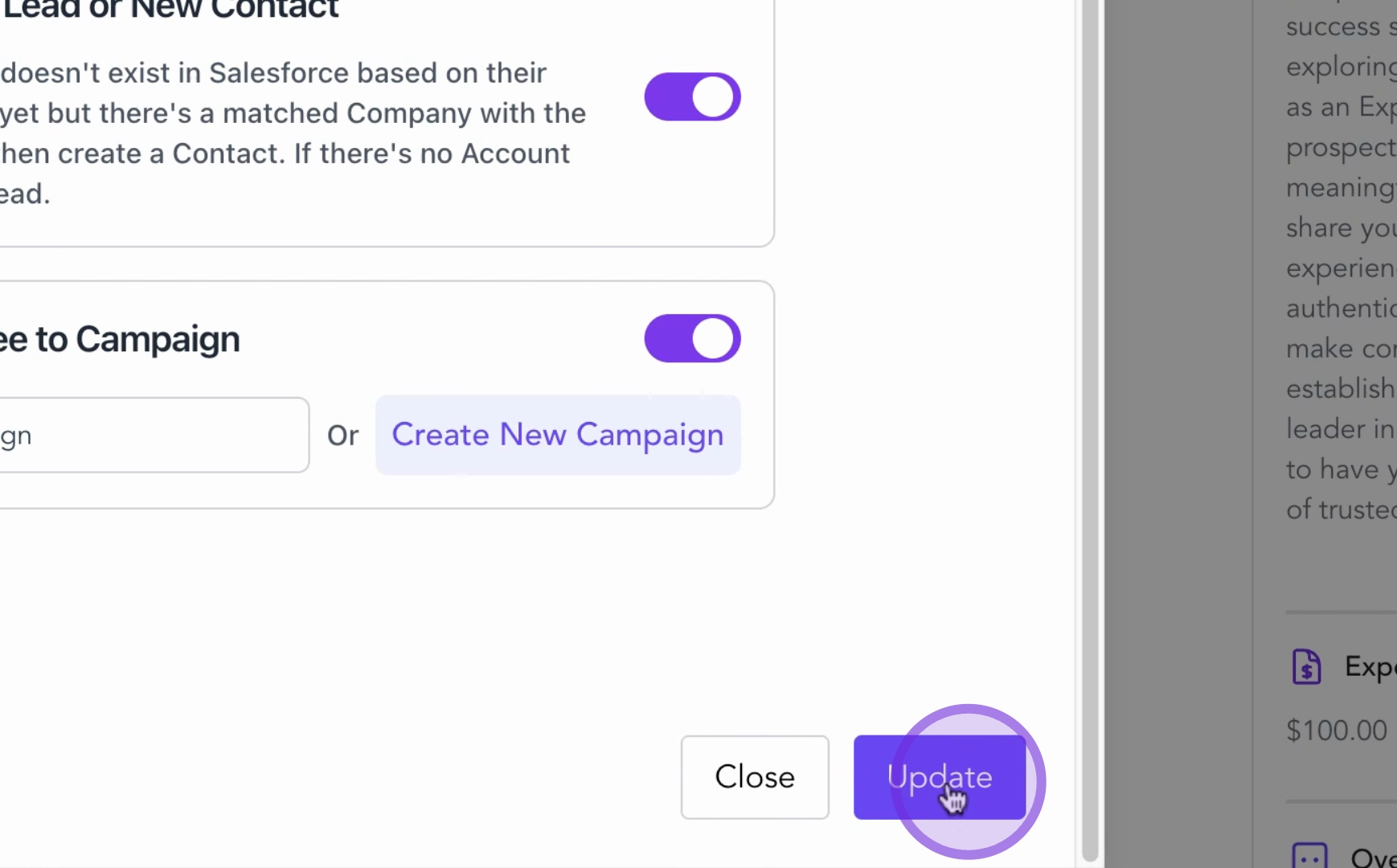
By following these steps, you have successfully synced your Salesforce account with SlashExperts, enabling comprehensive tracking of activities and individuals.
What Gets Created in Salesforce
1. Expert Meeting Records
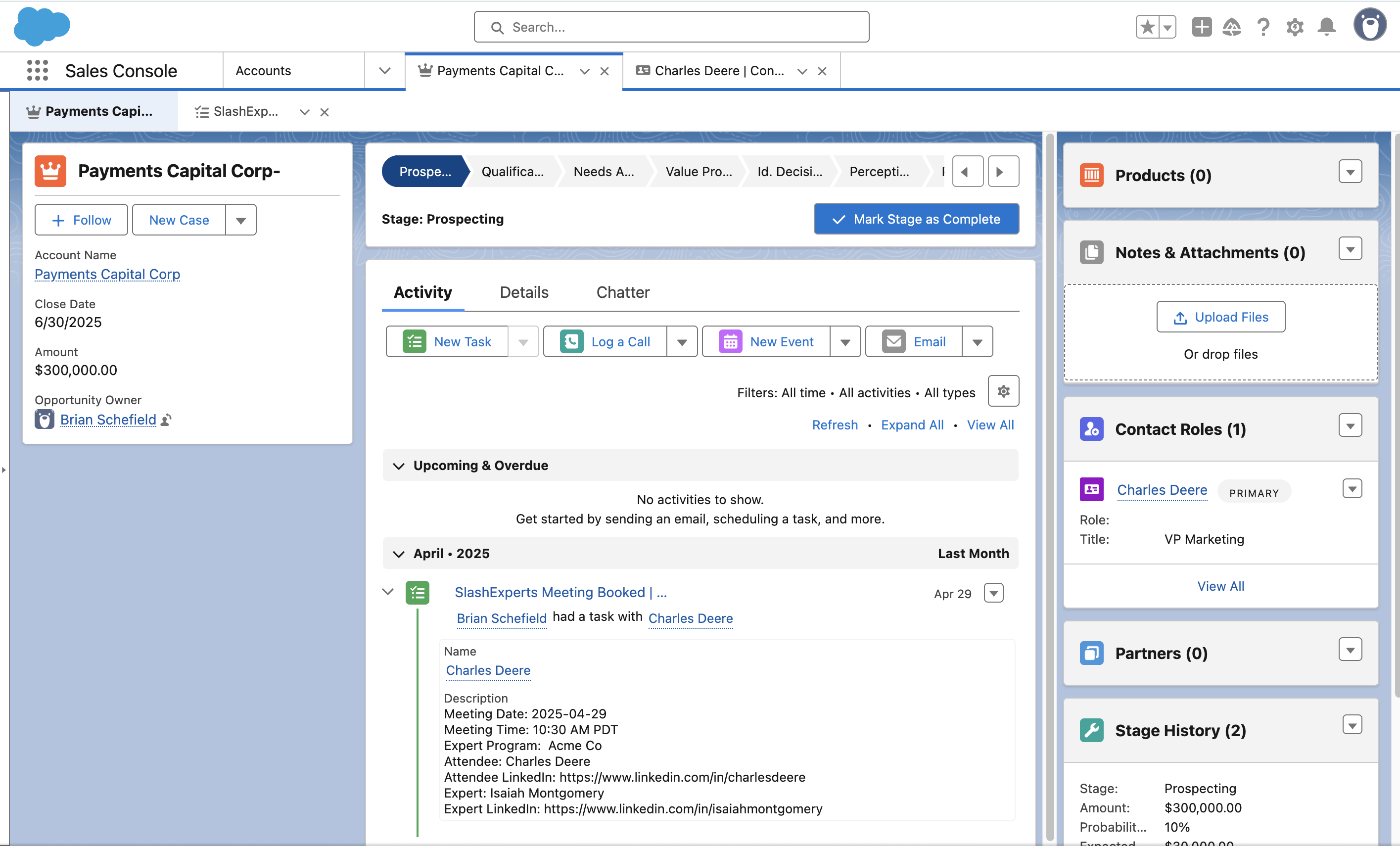
When a prospect books a meeting with one of your experts through the SlashExperts booking system, a task record is automatically created in Salesforce on the Account and Contact. These meeting records include:
Meeting date and time with proper timezone formatting
Expert program details (e.g., "Acme Co")
Complete attendee information including LinkedIn profile links
Expert name and LinkedIn profile information
Automatic association with the relevant opportunity
Proper assignment to the opportunity owner
2. Opportunity Tracking
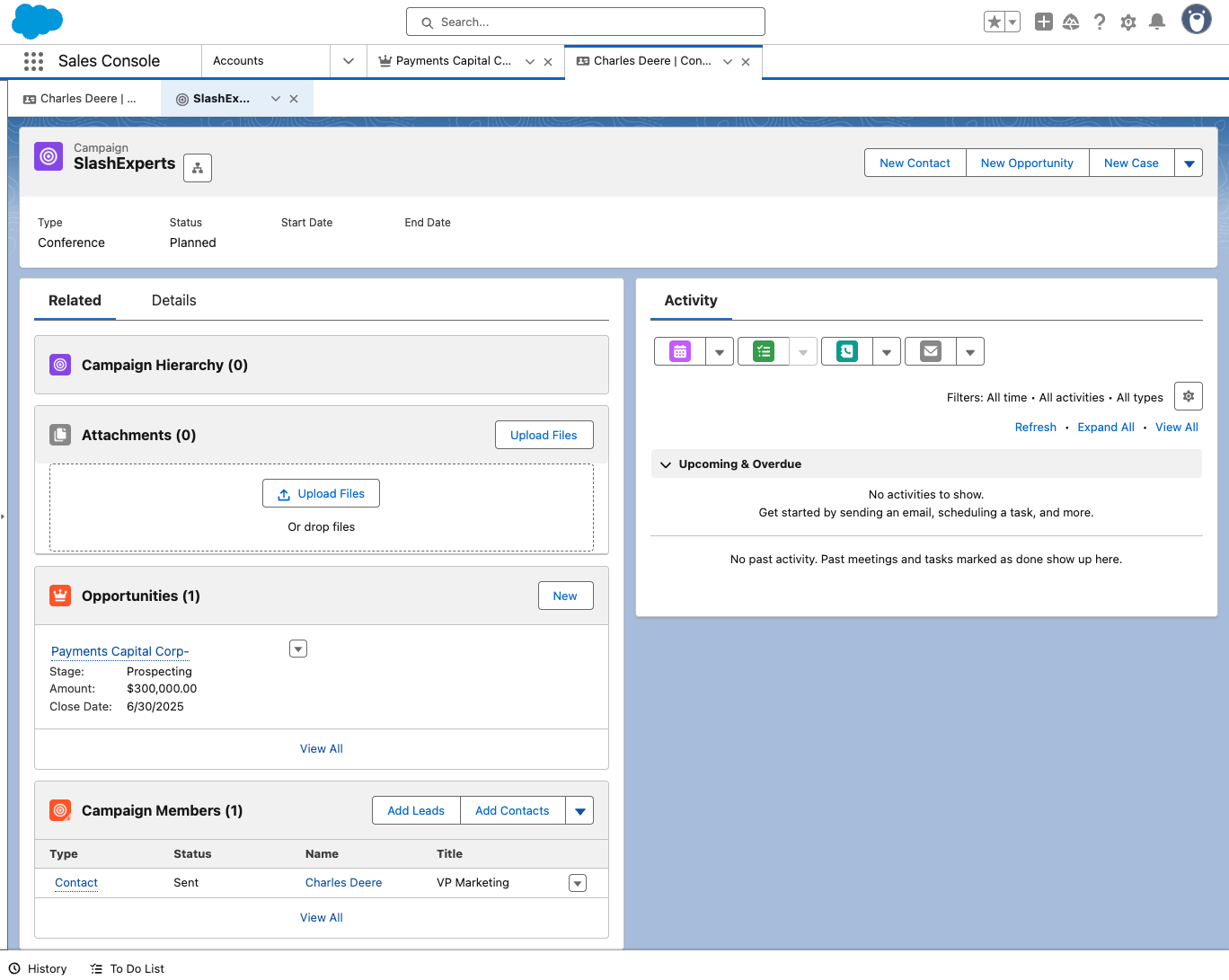
The integration automatically connects expert meetings with relevant opportunities in your pipeline (as shown in Image 1), allowing you to:
View all SlashExperts meetings associated with an opportunity
Track how expert conversations influence deal progression
Monitor which experts are contributing to specific opportunities
See the full context of expert discussions within your sales process
3. Contact Record Enhancement
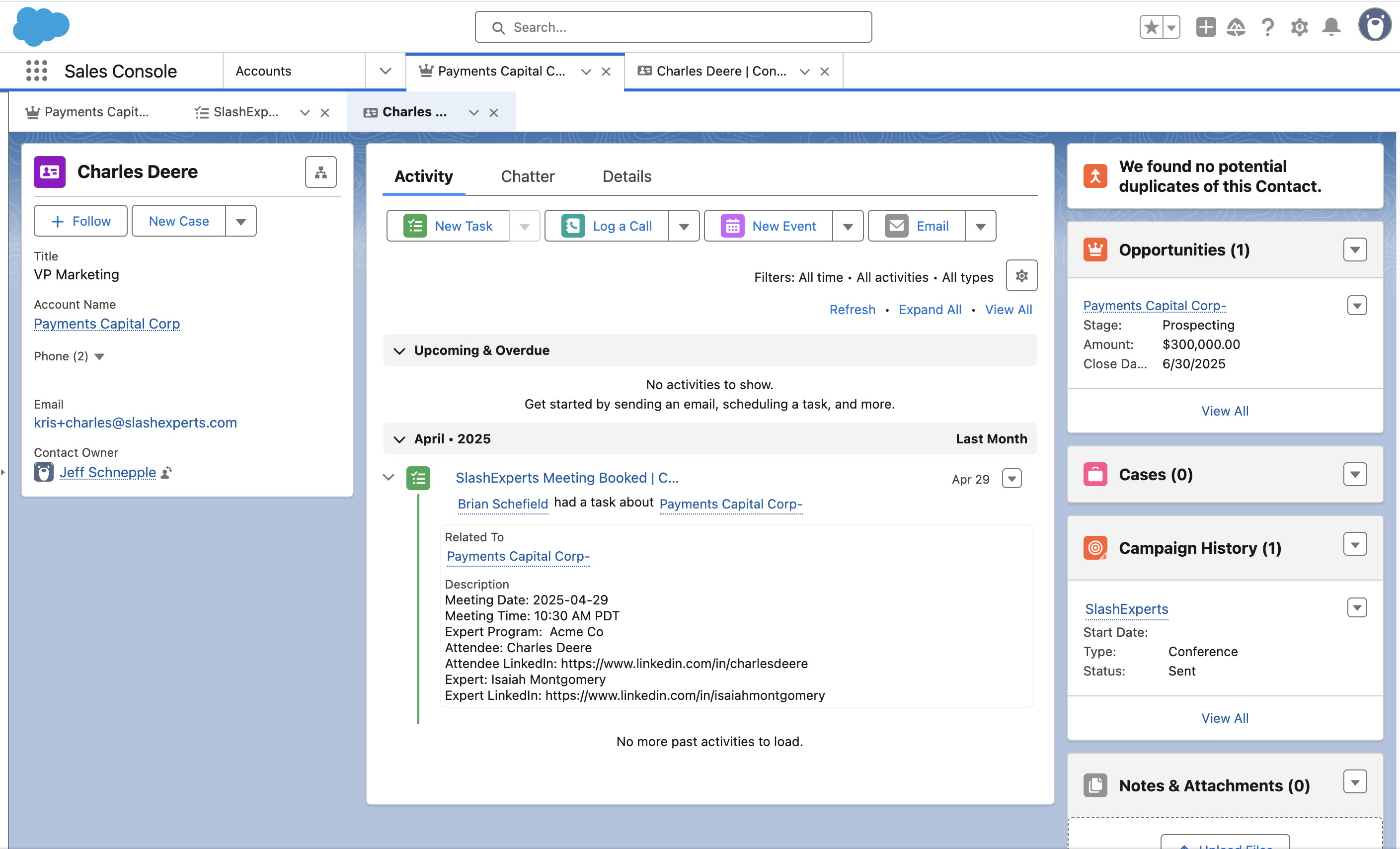
Contact records are enriched with SlashExperts meeting data, providing:
Complete meeting history with your experts
Expert program participation details
Campaign membership information
Automatic association with the correct accounts and opportunities
4. Salesforce Campaigns
Create a dedicated SlashExperts campaign in Salesforce. This campaign:
Tracks all prospects who engage with your experts
Allows you to monitor campaign performance directly within your Salesforce environment and create reports